
Connecting apps
How apps connect
Nostr apps use Bancwr as a remote signer over NIP-46. An app sends signing requests through relays, and the bunker answers them.
No app can connect on its own. An administrator issues a connection token for each app. The token:
- names the team member the app is connected for,
- lists the event kinds the app may sign,
- works for one connection only,
- expires after 1 hour, 24 hours or 7 days.
Every connected app signs as the bunker's key, not the member's own key. "For a member" records who the app belongs to. It is not a separate key.
An app can only sign the event kinds its token allows. There is no "everything" option.
NIP-46 must be on, and the bunker needs at least one relay. See NIP-46 and the bunker's relays.
The Connections page
Open Connections in the sidebar. Administrators and users can open it.
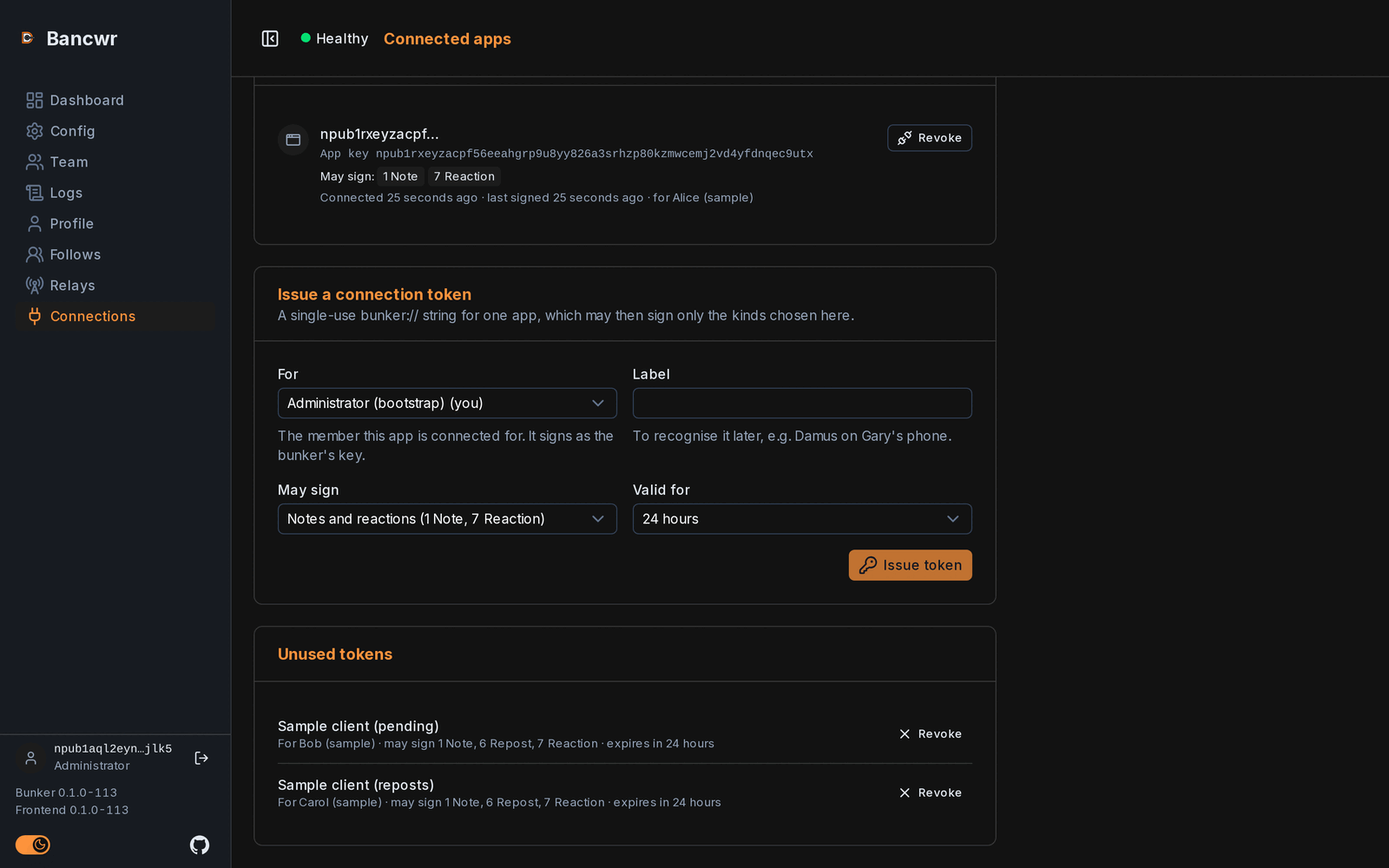
- An administrator sees every connected app, and whom each one is for.
- A user sees the apps connected for them.
Signers do not have this page.
Issuing a connection token
Only administrators can issue tokens.
- Open Connections.
- Under Issue a connection token, choose For: the member this app is connected for. It defaults to you.
- Enter a Label to recognise the app later, such as "Damus on my phone".
- Under May sign, choose what the app may sign:
- Notes and reactions (kinds 1 and 7)
- Notes, reactions and reposts (kinds 1, 6 and 7)
- Profile only (kind 0)
- Choose kinds…, then enter kind numbers separated by commas, such as
1, 7, 30023.
- Choose how long the token is Valid for: 1 hour, 24 hours or 7 days.
- Click Issue token.
The connection string
Bancwr shows a bunker:// connection string and a QR code.
- Give the string to the app, or scan the QR code with it. Use Copy to copy the string.
- Click Done when the app has it.
If NIP-46 is turned off on the bunker, Bancwr says so instead of issuing a token.
Unused tokens
Tokens that have not been used yet, and have not expired, are listed under Unused tokens. Each shows its label, whom it is for, what it may sign, and when it expires.
Click Revoke to cancel a token before an app uses it.
Connected apps
Each connected app shows:
- The name, address and picture the app gave about itself, with an Unverified badge.
- App key: the app's own public key.
- May sign: the event kinds it was granted.
- When it connected, and when it last signed.
- Whom it is for (administrators only).
An app that gave no name is shown by its key.
Names are not verified
NIP-46 lets an app name itself. The name, address and picture are what the app says, and Bancwr does not check them. They are never used to decide anything. Recognise your apps by the label and the time they connected.
Revoking an app
- Open Connections.
- Click Revoke on the app.
- Click Revoke again to confirm, or Cancel.
Users can revoke the apps connected for them. Administrators can revoke any app.
The app can no longer sign once revoked.
When a connection ends
A connection ends when:
- the app logs out,
- someone revokes it,
- the same app connects again with a newer connection, which replaces it,
- the member it was made for is removed from the team.
Ended connections are hidden. Turn on Show ended to see them, with why and by whom each one ended.
Connections are kept across restarts of the bunker.
What the bunker can sign over NIP-46
The bunker supports these NIP-46 requests: connect, get_public_key, sign_event, ping, switch_relays and logout.
It does not support the NIP-04 and NIP-44 encryption requests, so apps cannot ask it to encrypt or decrypt messages.