
Accounts and profile
The Accounts screen
Accounts is the first tab after you unlock. It lists the Nostr identities in your vault under "Manage your Nostr identities".
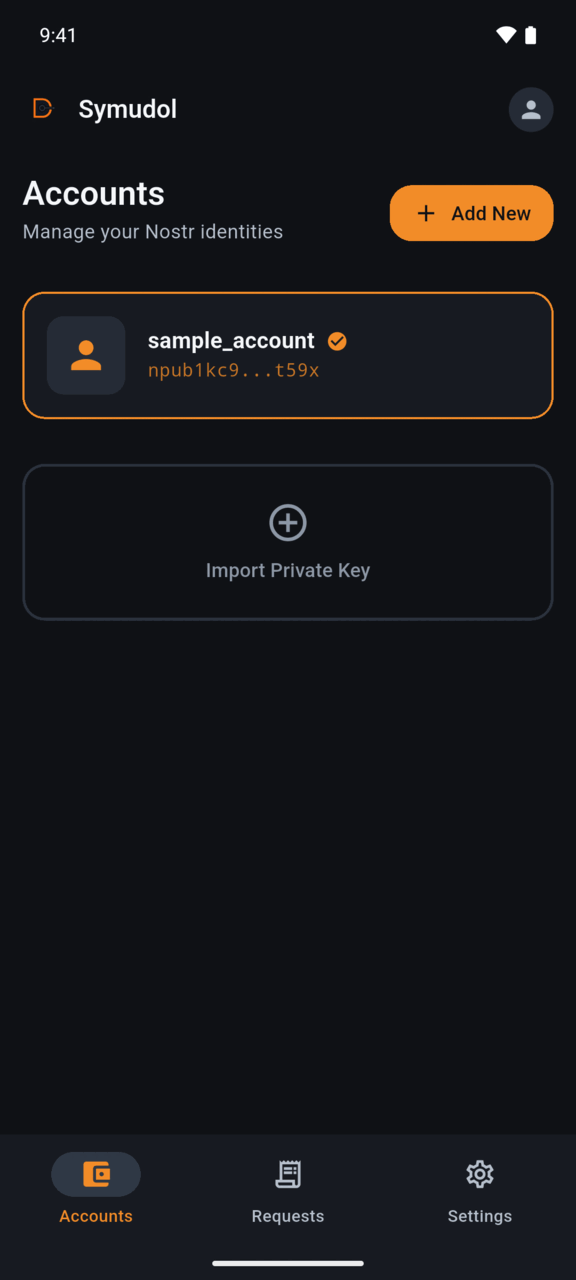
Each identity shows:
- Its profile picture, if one is found (see Profile picture).
- Its display name, or Unnamed Identity if you did not give one.
- A shortened
npub...public key.
If the vault is empty, you see No Identities Found and "Create or import your first Nostr identity to get started."
Create a new identity
Use this if you are new to Nostr or want a fresh identity.
- Tap Add New.
- In Create New Identity, enter a Display Name. This is optional.
- Tap Create.
Symudol generates a new key pair on the phone and shows "Identity created successfully".
The display name is a local label. It does not change your public Nostr profile.
Import an existing key
Use this if you already have a Nostr identity.
- Tap Import Private Key.
- Read the warning and tap I Understand. Make sure your screen is not being shared or recorded.
- In Enter Private Key, paste your key. Symudol accepts an
nsec1...key or a 64-character hex key. - Optionally, enter a Display Name.
- Tap Continue.
- Tap Confirm & Import.
The key is hidden as you type. Tap the eye icon to show it.
When it works, you see "Identity imported successfully".
Import errors
- Private key is required: the key field is empty.
- Invalid nsec key format: the
nsec1...key is not valid. Check you copied all of it. - Invalid private key format: the key is neither a valid
nsecnor 64 hex characters. - This identity already exists in your vault.: that key is already stored.
The active identity
Symudol signs with one identity at a time: the active identity.
- The first identity you add becomes active automatically.
- The active identity has a highlighted border and a check mark.
- To switch, tap another identity in the list.
Every request from another app uses the active identity. Check it before you approve anything. If an app asks for a different account than the active one, the request can be refused with "Requested account does not match active identity." Switch accounts and try again from the app.
Profile picture
Symudol looks up the public profile of each identity on two relays, wss://relay.damus.io and wss://nos.lol. It uses the profile picture from that profile:
- In each row of the Accounts list.
- In the round avatar at the top right of the Accounts and Requests screens, for the active identity.
Symudol fetches the profile again each time you open the Accounts or Requests tab. If no profile is found, it shows a plain person icon.
Symudol does not edit your profile. To change your name or picture, use a Nostr client.
Not available yet
The current development version cannot:
- Rename an identity.
- Delete an identity.
- Show or export a private key.