
Extension Settings
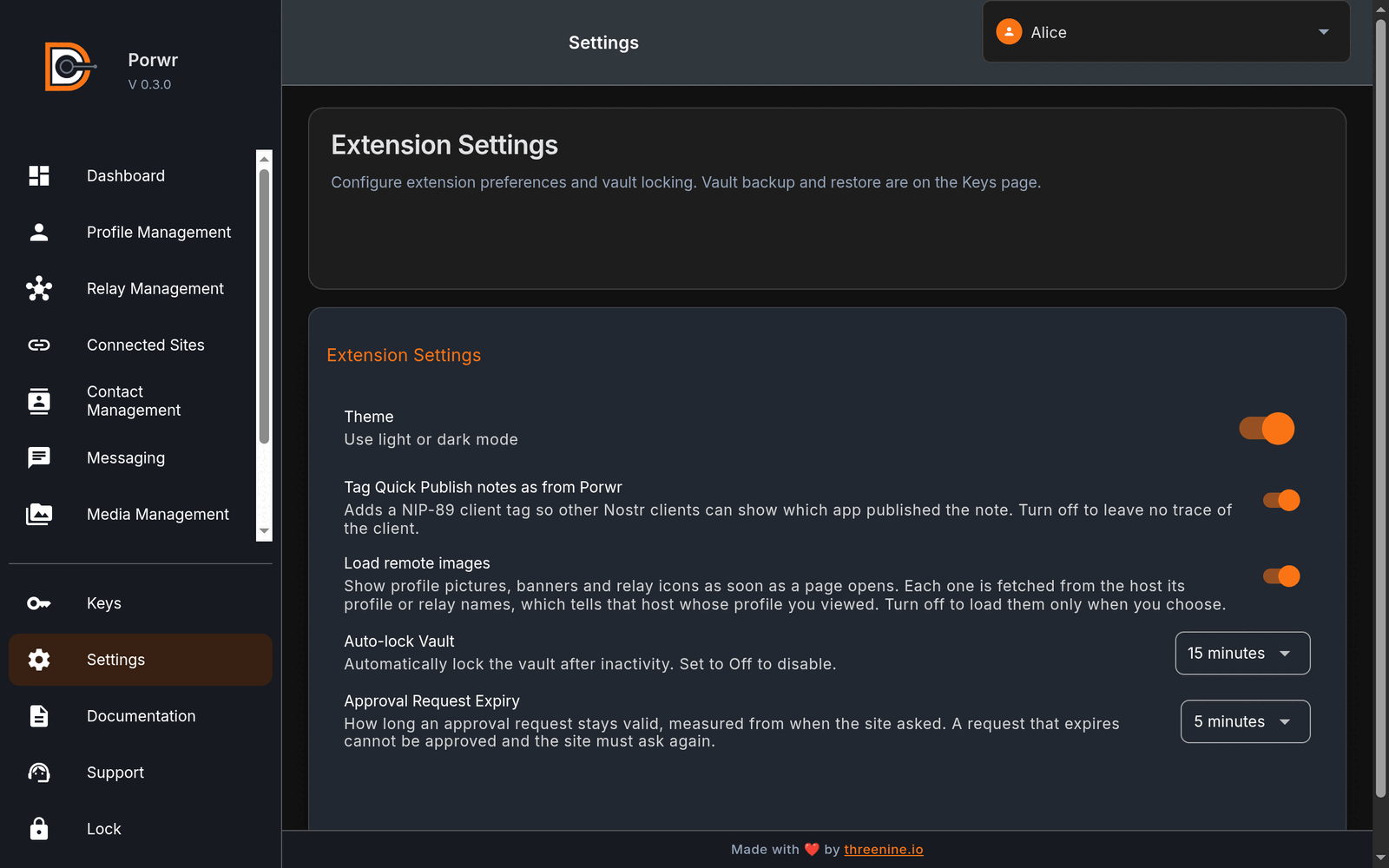
Extension Settings holds Porwr's preferences and vault locking. None of these settings changes your keys or your profile. Only the Quick Publish client tag affects what you publish to Nostr, by tagging Quick Publish notes.
What Settings is for
Use Settings to manage:
- Theme: light or dark mode
- Tag Quick Publish notes as from Porwr: the NIP-89 client tag on Quick Publish notes
- Load remote images: whether profile pictures, banners and relay icons load straight away
- Auto-lock Vault: how long the vault stays unlocked when you are inactive
- Approval Request Expiry: how long a website's request stays valid.
Vault backup and restore are not in Settings. They are in Key Management.
A vault backup saves your whole vault: every key, account and setting. It is not the same as exporting one key, which saves just that key as an ncryptsec locked with its own backup password. Both are in Key Management. See Vault backup or key export?
Theme
Porwr supports light and dark mode.
Changing the theme affects the extension UI only. It does not affect Nostr events, profile metadata, or website behavior.
Quick Publish client tag
Tag Quick Publish notes as from Porwr adds a NIP-89 client tag to notes you publish with Quick Publish, so other Nostr clients can show which app published them.
It is on by default. Turn it off to leave no trace of the client.
Load remote images
Profile pictures, banners and relay icons are not stored in Porwr. Each one is fetched from the host that the profile or relay names. Fetching an image tells that host that someone viewed that profile or relay.
Load remote images decides when Porwr fetches them:
- On (the default): images load as soon as a page opens.
- Off: Porwr shows a local placeholder instead and contacts no image host. A notice says the page's remote images are hidden. Choose Load image to load one image, or Load images on this page to load them all.
Porwr remembers the images you load only until you move to another page. It never stores them, because that would keep a record of the profiles you viewed.
Turn it off if you would rather not tell image hosts which profiles you look at.
If another Porwr page or the side panel is already open when you change the setting, it may keep the old setting until you reload it. Porwr tells you when that happens.
Auto-lock Vault
Auto-lock Vault controls how long Porwr keeps the vault unlocked after inactivity.
The options are:
- Off
- 1 minute
- 5 minutes
- 15 minutes
- 30 minutes
- 60 minutes
Choosing an auto-lock value
Shorter lock times are safer.
Longer lock times are more convenient.
Suggested defaults:
- shared or risky device: 1-5 minutes
- normal personal device: 15 minutes
- trusted desktop environment: 30-60 minutes if acceptable
- off only when you understand the risk
When the vault locks, Porwr cannot sign, publish, manage keys, or use wallet connections until unlocked again.
Approval Request Expiry
Approval Request Expiry controls how long a website's request stays valid, measured from when the site asked.
You can choose between 1 and 10 minutes. The default is 5 minutes. There is no "never" option.
A request that expires can no longer be approved, and the site must ask again.
Moved in Porwr 0.3.0
- Vault backup and restore are now in Key Management.
- The Blossom server URL is now in Media Management.
- Profile Search Relays are now in Relay Management.
Common issues
Auto-lock is annoying
Increase the timeout. Do not disable auto-lock unless you understand the device risk.
Images still load after turning off Load remote images
Reload any Porwr page or side panel that was open when you changed the setting.
Theme does not update immediately
Refresh or reopen the extension window. If the problem persists, check for browser extension caching during development builds.
Best practices
- Keep auto-lock enabled on normal devices
- Turn off Load remote images if you do not want image hosts to learn which profiles you view
- Keep approval request expiry short so stale requests cannot be approved later