

Team and roles
The Team page
The Team page lists everyone registered with the bunker. Only administrators can open it.
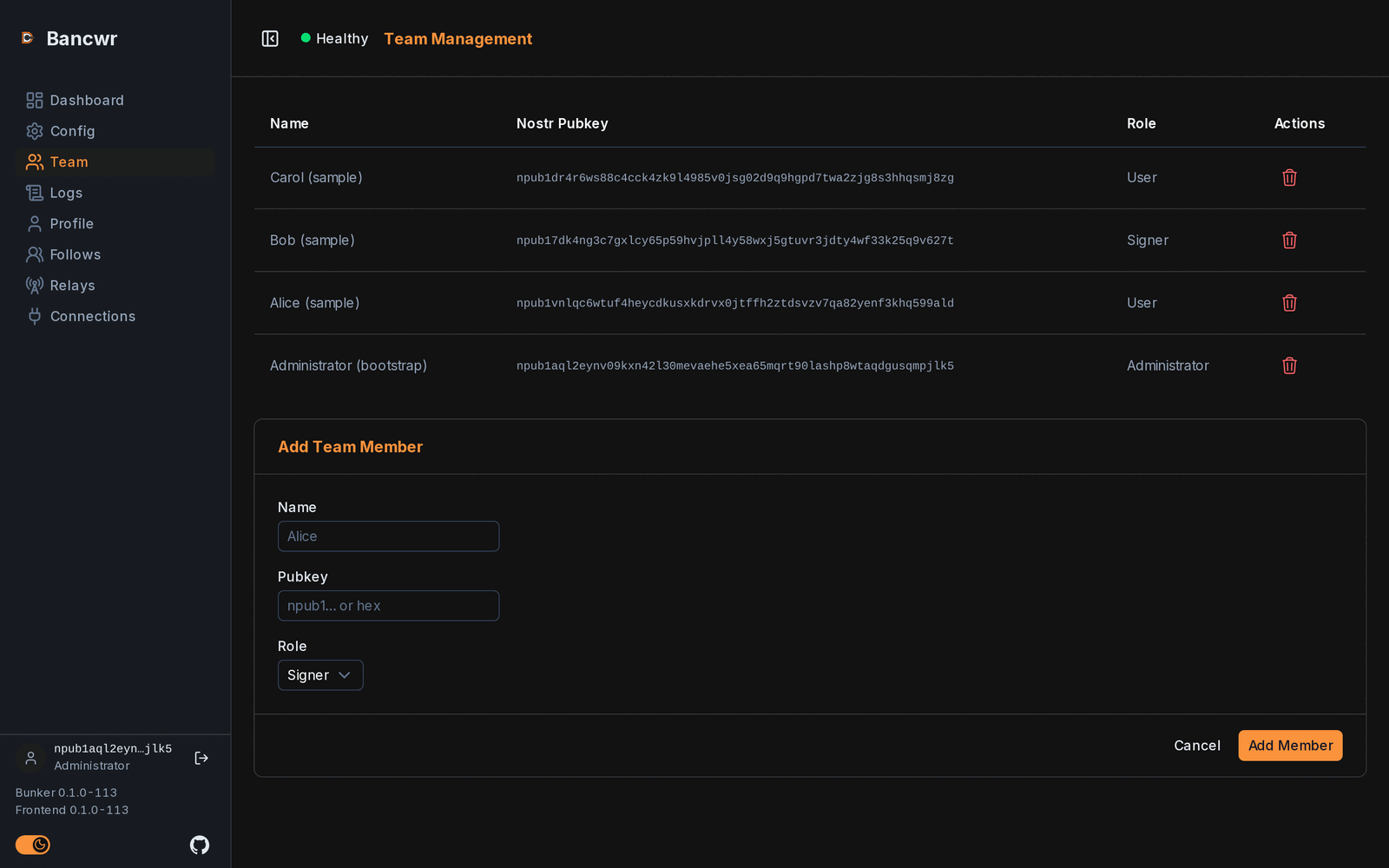
Each row shows the member's name, their public key as an npub, their role, and a button to remove them.
Roles
| Role | What they can do |
|---|---|
| Administrator | Everything: the team, connection tokens, all connected apps, the signing log and the bunker's configuration. |
| User | See the bunker's health. Edit their own profile, follows and relays. See and revoke the apps connected for them. |
| Signer | See the bunker's health. Edit their own profile. |
See What is Bancwr for the full list of pages each role can open.
Adding a member
- Open Team.
- Under Add Team Member, enter a Name to recognise them by.
- Enter their Pubkey, as an
npubor a hex public key. - Choose a Role: Administrator, User or Signer. The default is Signer.
- Click Add Member.
The member can sign in straight away with that key.
Ask people for their public key (npub). Never ask for a private key (nsec).
Keys that are refused
The bunker refuses to add:
- A key that is already registered, whether it was entered as an
npubor as hex. - The bunker's own key. It can never be registered, with any role.
- A value that is not a valid public key.
When a key is refused, Bancwr shows Failed to add member.
Removing a member
- Open Team.
- Click the remove button on the member's row.
- Confirm.
Removing a member takes effect at once. They lose access on their next page load.
Removing a member also ends their unused connection tokens and the app connections made for them.
The last administrator
You cannot remove the only administrator. The bunker would be left with nobody able to manage it. Add another administrator first.
When a removal is refused, Bancwr shows Failed to remove member.
Changing a role
There is no option to change a member's role. Remove the member and add them again with the new role.
Removing a member ends the app connections made for them, so those apps need new connection tokens afterwards.