

Key Management
This is one of the most sensitive areas of Porwr. A Nostr private key controls an identity. Anyone with that private key can act as that identity.
What Key Management is for
Use Key Management to:
- create a new Nostr identity
- import an existing Nostr private key
- view stored keys
- rename local key aliases
- select which identity is active
- export a backup of a single key
- back up or restore the whole vault
- inspect public/private key details when needed.
Nostr keys in plain English
A Nostr identity has two important parts:
- Public key — identifies you publicly. Safe to share.
- Private key — controls the identity. Never share it.
Public keys are often encoded as npub....
Private keys are often encoded as nsec....
Porwr stores private keys in an encrypted local vault so websites can request signatures without receiving your private key.
What is an ncryptsec?
An ncryptsec is a private key locked with a password you choose. It starts with ncryptsec1.... Without that password, nobody can read the key inside it.
That makes it a safer way to store or move a key than a bare nsec. Porwr uses it when you export a key, and imports it too. It follows NIP-49, the Nostr standard for encrypted private keys, so other Nostr apps that support NIP-49 can import it as well.
An ncryptsec is only as strong as its password. Choose a long one, and keep the file and the password apart.
Active key
The active key is the identity Porwr uses by default.
It is used for:
- NIP-07 website signing
- profile updates
- relay metadata publishing
- Quick Publish.
If you manage multiple identities, check the active key before signing or publishing.
Creating a new key
Use Add New Key when you want a fresh Nostr identity.
Typical workflow:
- Open Key Management.
- Choose Add New Key.
- Enter a local alias.
- Generate the key.
- Save it to the vault.
- Make a vault backup and store it securely.
The alias is local to Porwr. It does not change your Nostr public key or public profile name.
Importing an existing key
Use Import Key when you already have a Nostr private key.
Typical workflow:
- Open Key Management.
- Choose Import Key.
- In Private key (nsec or ncryptsec), paste an
nsec...private key or anncryptsec...encrypted key, then choose Import. - For an
ncryptsec, enter its password in Password for the encrypted key. This is the password chosen when the key was exported. - Add a recognizable alias.
- Choose Save to add it to the vault.
Porwr imports ncryptsec keys exported by other Nostr apps that support NIP-49, not only its own exports.
Only import keys on devices you control and trust.
Viewing a key
The key view lets you inspect a stored key, change its local alias, and export it.
Show private key and Copy private key ask for your vault password first, even while the vault is unlocked. Enter it and choose Show key. If the password is wrong, Porwr shows "Could not show the private key. Check your vault password and try again." and the key stays hidden.
Be careful when viewing private key material. Do not screen-share, screenshot, or paste private keys into chat.
Local aliases
Aliases help you recognize keys inside Porwr.
Examples:
Main AccountWorkPersonalTestingAnonymous
Aliases are not public Nostr names. To change your public name, use Profile Management.
Vault Backup & Restore
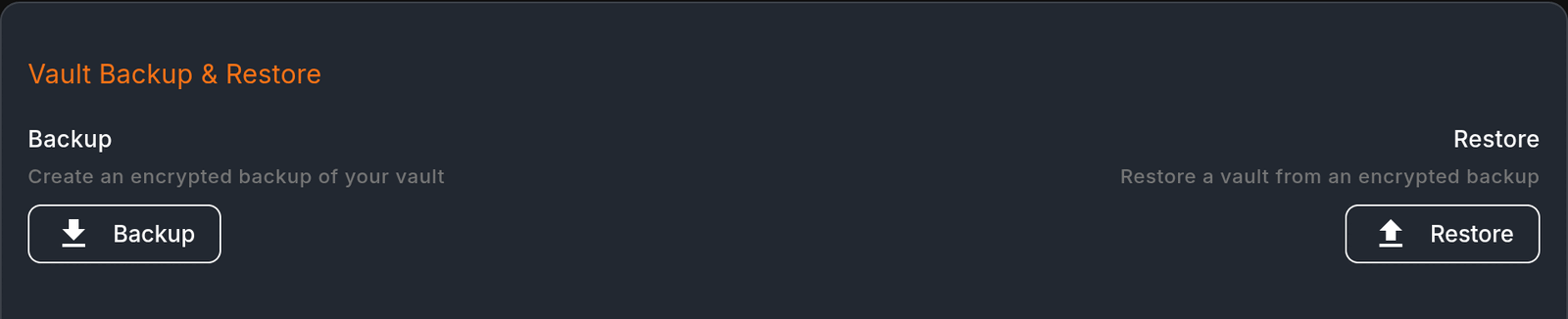
The Vault Backup & Restore card on the Key Management page has two buttons:
- Backup creates an encrypted backup of your vault.
- Restore replaces your vault with one from an encrypted backup.
Each opens its own page with the details and warnings you need before you go ahead.
Vault Backup
A vault backup is an encrypted copy of your entire vault: your keys, accounts and settings. Make one after you create or import an important key, and again after you add an important wallet connection.
- Open Key Management.
- In Vault Backup & Restore, choose Backup.
- Read the notes on the Vault Backup page.
- Choose Backup, then choose where to save the file.
Porwr confirms when the backup is saved and shows where. If you close the save window, nothing is written.
Before you rely on a backup:
- The backup opens only with the vault password you have when you make it. Write that password down: Porwr cannot remind you of it.
- If the password is lost, nobody can open the backup, Diogel support included.
- Keep the backup somewhere safe, ideally offline.
- Never keep the backup in the same place as its password.
Vault Restore
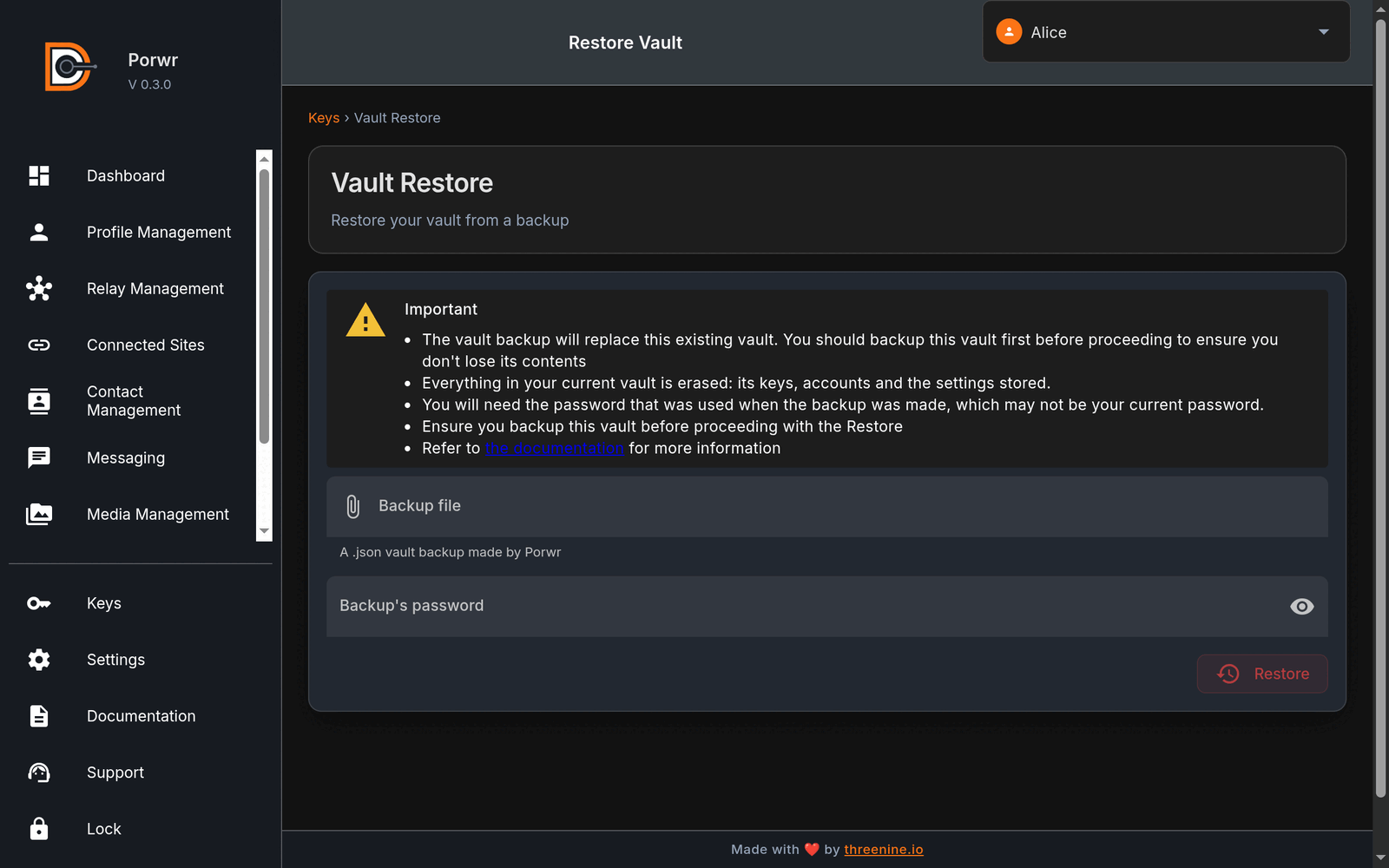
Restoring replaces your current vault with the one in a backup. Everything in your current vault is erased: its keys, accounts and stored settings. Back up your current vault first so you don't lose anything.
- Open Key Management.
- In Vault Backup & Restore, choose Restore.
- Read the warnings on the Vault Restore page.
- Choose the Backup file, a
.jsonvault backup made by Porwr. - Enter the Backup's password. This is the vault password from when the backup was made, which may not be your current password.
- Choose Restore.
When the restore finishes, unlock Porwr with the backup's password.
Nothing changes until you choose Restore. If you close the file picker or leave the page before then, your current vault stays as it is.
If the restore fails, Porwr tells you why and your current vault is not changed:
- This file is not a Porwr vault backup, or it is damaged. Choose the right file. Porwr only restores its own vault backups.
- That password does not open this backup. Use the vault password from when the backup was made.
- The backup could not be restored. Try again. If it keeps failing, check that the browser can store extension data.
Vault password
Your vault password is not a cloud account password. It must be at least 8 characters.
Porwr cannot reset it for you. If you forget it and have no usable backup or private key export, you may lose access to stored identities.
Relationship to browser sync
Do not rely on browser sync as your only backup strategy.
Browser extension storage behavior can vary by browser, profile, and extension settings. Use a Porwr vault backup for intentional backups.
Exporting a single key
To back up one key instead of the whole vault, export it. Porwr saves it as an ncryptsec, locked with a backup password you choose.
- Open the key in Key Management and choose Export.
- Enter your Vault password.
- Choose a Password for the backup, at least 8 characters, and type it again in Confirm password.
- Keep or change the File name, then choose Export and save the file.
The file name starts as porwr-key-backup-YYYY-MM-DD.txt, with the day's date. The file is plain text and holds:
- the key's public key (
npub) - the private key as an
ncryptsec, encrypted with the backup password - short instructions for restoring it.
It does not hold the key's alias, so the file does not say whose key it is.
Porwr asks for your vault password as well as the backup password because anyone who chooses the backup password can open the export.
Before you rely on an export:
- Write the backup password down. You need it to restore the key.
- Nobody can recover a lost backup password, Diogel support included. Without it, the backup cannot be opened.
- Keep the file and its password in separate places.
Restoring an exported key
In Porwr, import it: open Key Management, choose Import Key, paste the ncryptsec1... line from the file, choose Import and enter the backup password.
In another Nostr app, use its option for importing an ncryptsec or NIP-49 encrypted key, and enter the same password.
Vault backup or key export?
| Vault backup | Key export | |
|---|---|---|
| What it holds | Your whole vault: every key, account and setting | One key |
| File | .json | .txt holding an ncryptsec |
| Opens with | The vault password from when the backup was made | The backup password chosen when exporting |
| Restores in | Porwr only, and replaces your whole vault | Porwr or any Nostr app that supports NIP-49, adding just that key |
Store backups in a secure place, such as:
- a reputable password manager
- an encrypted offline drive
- a printed/offline recovery record stored safely.
Avoid storing raw private keys in plain text files or cloud notes.
Multiple identities
Porwr can store multiple identities in the vault.
This is useful for separating contexts:
- personal identity
- work identity
- testing identity
- anonymous or pseudonymous identity.
Before signing from a website or publishing, confirm the active identity is the one you intend to use.
Security warnings
Never share your private key
Your private key controls your identity. If someone gets it, they can impersonate you.
Do not paste private keys into websites
A website that asks for an nsec key should be treated with suspicion. Use Porwr as a signer instead.
Back up before relying on an identity
If the browser profile is lost, corrupted, or deleted, you may lose local vault data unless you have a vault backup.
Keep your vault password safe
The vault password protects local encrypted vault data. Porwr cannot reset it if forgotten.
Common issues
Invalid nsec or ncryptsec
Porwr shows "Enter a valid nsec, or an ncryptsec encrypted key". Check that the key starts with nsec1 or ncryptsec1 and was copied completely, with no extra text from the backup file.
Incorrect password, or not a valid ncryptsec
The password does not open this ncryptsec, or the key is damaged. Use the backup password chosen when the key was exported, not your vault password, unless you used the same one.
Duplicate key
Porwr may reject importing a key that already exists in the vault.
No active account selected
Open Key Management and select the key you want to use.
Website signs with the wrong identity
Check the active key before approving website requests.
Best practices
- Use clear aliases.
- Make a vault backup after creating or importing important keys, and after adding important wallet connections.
- Back up your current vault before restoring another one.
- Keep backups and their passwords in separate, secure places.
- Write down every backup password. Porwr cannot recover it.
- Do not expose private keys during screenshots or support requests.
- Use separate identities for separate contexts.
- Check active identity before approving signatures.