
Wallet Management
This feature is based on NIP-47. It lets Porwr talk to an external Lightning wallet service through Nostr relays.
Important safety summary
- Porwr does not become a full Lightning wallet.
- Porwr does not custody your funds.
- Porwr stores NWC connection secrets inside the encrypted vault.
- Each Porwr account has its own wallets.
- Websites can use your wallet only through WebLN, after you enable it for that site.
- A website pays only from the active wallet of the account it is connected as.
- Every payment, from the extension or from a website, requires explicit approval. Payment approvals are never remembered.
What Wallet Management is for
Use Wallet Management to:
- connect a wallet, either with a few clicks or by pasting an NWC URI
- label wallet connections and choose the active one
- store connection secrets in the encrypted vault
- fetch wallet capabilities
- check wallet balance
- pay BOLT11 invoices after explicit approval
- review payment history
What Nostr Wallet Connect is
Nostr Wallet Connect lets an app send wallet commands over Nostr events.
Porwr holds a connection secret for your wallet service and uses it to send encrypted wallet requests over the wallet's relays.
The wallet service decides which commands are allowed.
Connecting a wallet
Open Wallet Management and choose Connect wallet.
Connect with Alby Hub or Coinos
For Alby Hub and Coinos you don't need to copy anything.
- Choose Connect Alby Hub or Connect Coinos.
- Approve Porwr in the wallet window that opens.
- Porwr stores the connection in the encrypted vault.
The connection key is created inside Porwr and is never shown to websites.
Each Porwr account has its own wallets. The connection is added to the account selected in the dashboard, so select the right account before you connect. See Wallets and accounts.
If you run your own Alby Hub, turn on Use my own Alby Hub and enter its https:// address first. See
Self-hosted Alby Hub.
If the wallet window doesn't open, allow pop-ups for Porwr and try again.
Paste a connection string
For any other Nostr Wallet Connect wallet, such as LNbits with NWC support, use Paste a connection string instead.
- In your wallet service, find Apps, Connections, Developer, or Nostr Wallet Connect.
- Create a new app connection and copy the full
nostr+walletconnect://...URI. - In Porwr, enter an optional Connection label, such as
Alby,LNbits, orHome node. - Paste the URI into NWC URI.
- Choose Import connection.
Porwr validates the URI and stores the secret in the encrypted vault.
An NWC URI contains the wallet service public key, relay URLs, a client secret and, optionally, a Lightning
address (lud16). Treat the full URI as sensitive. Do not share it publicly.
Self-hosted Alby Hub (Umbrel, Start9 and home nodes)
If you run Alby Hub yourself, turn on Use my own Alby Hub and enter your hub's address before clicking Connect Alby Hub.
One-click connect only works when your hub is served over https:// with a certificate your browser trusts. Porwr opens your hub's approval page in a pop-up and trusts the approval it sends back because of the page's address. Over plain http://, anything on your local network could alter or imitate that page, so Porwr refuses it.
Most home-node setups serve Alby Hub over plain http:// on the local network, for example:
http://umbrel.local:59000
With an address like this, one-click connect cannot work:
- An
http://address is refused with Enter the https:// address of your Alby Hub. - Changing it to
https://umbrel.local:59000gets past that check, but the hub is not listening for HTTPS on that port. The approval page fails to load, or your browser warns about the certificate, and Porwr reports that it did not hear back from Alby Hub.
Connect a self-hosted hub with a connection string
This works with any self-hosted hub, whatever its address. Payments do not use your hub's web address. They travel over the Nostr relays in the connection string.
- Open Alby Hub at its usual local address, for example
http://umbrel.local:59000. - Go to Apps and add a new app connection. Name it
Porwr. - Grant at least pay invoice, get balance and get info, and set a budget if you want one.
- Copy the full
nostr+walletconnect://...connection string Alby Hub shows. - In Porwr, open Wallet Management and expand Paste a connection string instead.
- Paste the string, add a label such as
Umbrel Alby Hub, and click Import connection.
Porwr checks the connection straight away. If the check fails, make sure your hub is running and can reach its relay.
Use one-click connect with a self-hosted hub
One-click connect works if your hub is served over HTTPS with a trusted certificate. Examples include a reverse proxy with a real certificate, Tailscale HTTPS, or a tunnel service. Enter that https:// address under Use my own Alby Hub.
A self-signed certificate is not enough unless your browser already trusts it.
Wallets and accounts
Each Porwr account has its own wallet connections, its own active wallet and its own payment history.
Wallet Management shows the wallets of the active account. The caption names it, for example "Wallets for Main Account. Each account has its own wallets." To see and manage another account's wallets, make that account active in Key Management. A wallet you connect belongs to the account that was active at the time, and to no other.
Upgrading from 0.2.x
Before 0.3.0, every account shared one list of wallets. When you upgrade, Porwr gives those wallets, and their payment history, to the account aliased Main Account. If no account has that alias, they go to your first account. This happens once, the first time you use a wallet feature after the upgrade.
If a wallet should belong to another account, connect it again while that account is selected, then remove it from the main account.
Removing an account
Removing an account from Porwr also removes its wallet connections, the WebLN access you gave websites for those wallets, and its payment history. Your other accounts' wallets are not affected.
As with removing a connection, this does not revoke the connections in your wallet service. Revoke them there too.
Active wallet
An account with wallet connections has one active wallet. Porwr uses it for that account's payments, including WebLN payments requested by websites connected as that account. An account with no wallet connections has no active wallet, and payments for it fail.
Other connections are listed under Other connections. Use Make active to switch.
WebLN access is given for a particular wallet connection. After you make another wallet active, websites that had WebLN enabled must ask you to enable it again before they can request payments.
Configured connections
After connecting, Porwr shows each connection with:
- local label
- wallet service public key preview
- client public key preview
- configured relays
- advertised capabilities after fetching info
- last balance check when available
Connection summaries intentionally do not show the client secret.
Wallet info
Click Info to ask the wallet service for its metadata and capabilities.
Capabilities may include:
get_infoget_balancepay_invoicemake_invoicelookup_invoicelist_transactions
The exact list depends on the wallet service and the permissions granted to the NWC connection.
Balance checks
Click Balance to send a NIP-47 get_balance request.
If successful, Porwr shows the balance in sats.
If it fails, check:
- wallet service is online
- relays are reachable
- NWC connection is still valid
- wallet permits
get_balance - browser network access is working
Paying invoices
Porwr supports explicit user-approved pay_invoice requests.
Workflow:
- Click Info for the wallet connection.
- Confirm
pay_invoiceappears in capabilities. - Click Pay invoice.
- Paste a BOLT11 invoice.
- Review parsed amount and invoice preview.
- Tick the acknowledgement checkbox.
- Click Approve and pay.
Start with a tiny test invoice, such as 1-10 sats.
Why Pay invoice may be disabled
The Pay invoice button is disabled unless the wallet advertises pay_invoice.
If it is disabled:
- click Info
- check whether
pay_invoiceappears - verify the wallet connection grants payment permission
Payment approval dialog
The approval dialog is intentionally direct because Lightning payments are real money.
It shows:
- selected wallet connection
- BOLT11 invoice field
- parsed amount where possible
- shortened invoice preview
- explicit acknowledgement checkbox
- final Approve and pay action.
Porwr only sends the wallet payment command after final approval.
Payment history
Payment history is stored inside the encrypted vault.
It records the latest 100 payment attempts for each account, including payments requested by websites through WebLN. Wallet Management shows the history of the selected account.
Entries include:
- timestamp
- wallet connection label
- status: succeeded or failed
- parsed amount when available
- fees when returned
- short payment hash when returned
- invoice preview
- error message for failed attempts
Porwr does not show the payment preimage in the UI.
Websites and WebLN
Websites can ask Porwr to make Lightning payments through WebLN (window.webln). Nothing is paid without your
approval, and a site cannot use your wallet at all until you enable WebLN for it.
Enabling WebLN for a site
The first time a site wants to use your wallet, it calls webln.enable(). Porwr shows a WebLN wallet access
request that says: "Allow this site to use Porwr as a WebLN wallet provider. Payments will still require
separate approval."
Under Remember this choice, pick how long the site keeps access:
- Just this once: until you leave or reload the page
- For the next 8 hours
- Always for this site
Enabling WebLN pays nothing by itself. It lets the site ask for payments.
Approving each payment
When the site wants to pay an invoice, it calls webln.sendPayment(invoice). Porwr shows a WebLN payment
request with the invoice amount. Approve it only if the amount is what you expect.
A payment can only be approved once. The approval shows "This request can only be approved once." and is never remembered, so every payment asks again, even on a site where WebLN is enabled Always for this site.
Which wallet a site pays from
A site pays from the active wallet of the account it is connected as. The Porwr sidebar shows this as Connected as for the site in the current tab. It is not necessarily your active account.
A site connected as one account can never pay from another account's wallets. If that account has no wallet, the payment fails with "No wallet is configured for this account."
Moving a site to another account
If you move a site to another account, for example with Use account for this site in the sidebar or Reject and use account on a request, its standing permissions are removed. The site must ask you to enable WebLN again, and then pays from the new account's active wallet.
The same applies after you use Make active on another wallet for the site's account.
Supported methods
Porwr supports the WebLN methods enable, getInfo, and sendPayment. Other methods, such as keysend and
makeInvoice, are rejected with an UnsupportedMethodError.
Zaps from Nostr clients
Porwr 0.3.0 lets you zap from Nostr web clients such as Snort, Coracle, and nostrudel. The client builds the zap. Porwr signs it and pays it, and asks for your approval at each step.
A zap from a website goes like this:
- The client reads your relays. It calls
window.nostr.getRelays()to fill in the zap request. - You approve the zap request. The client asks Porwr to sign a NIP-57 zap request (kind
9734). The approval shows the amount, the recipient's npub, the note or event being zapped, and any comment. Signing attaches your identity to the zap. It does not pay anything. You can approve it Just this once or For the next 8 hours, but not always. - You enable WebLN for the site. The first time, the site calls
window.webln.enable()and Porwr asks whether to let it request payments from the active wallet of the account the site is connected as. You can allow it Just this once, For the next 8 hours, or Always for this site. Enabling pays nothing by itself. See Websites and WebLN. - You approve the payment. The site calls
window.webln.sendPayment(invoice). Porwr shows the invoice amount and asks you to approve it. A payment approval is never remembered, so every zap asks again.
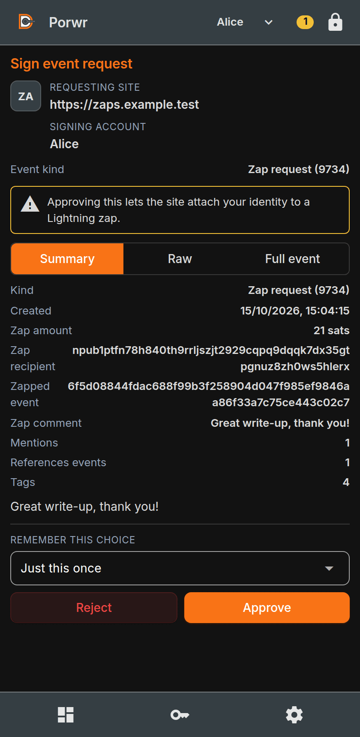
Porwr then pays the invoice through that account's active wallet connection, and the recipient's wallet publishes the zap receipt.
What Porwr does not do
- Porwr does not start zaps itself. There is no "send zap" button in the extension.
- It does not look up Lightning addresses, fetch invoices, or keep a zap history. Those are the client's job.
- It supports only some WebLN methods. See Supported methods.
Another WebLN extension
If another extension, such as Alby, already provides window.webln, Porwr leaves it in place. Porwr's own
WebLN is then available as window.diogelWebln.
Breaking change for developers
Porwr 0.3.0 removes window.nostr.diogel.getZapCapabilities and window.nostr.diogel.sendZap. Sites that
used them should build the zap request themselves, sign it with window.nostr.signEvent, and pay the invoice
with window.webln.sendPayment.
Zap history saved by an earlier version is dropped the next time the vault is saved.
Removing a connection
Use Remove to delete a wallet connection from the vault.
You should also revoke unused or exposed NWC connections from the wallet service itself. Removing the local copy from Porwr does not necessarily revoke the credential on the wallet provider side.
Security guidance
- Treat NWC URIs like API keys.
- Do not post NWC URIs in support tickets, screenshots, chats, or logs.
- Revoke exposed wallet connections immediately.
- Use low limits where your wallet service supports them.
- Start with small test payments.
- Do not approve invoices you do not understand.
- Enable WebLN only for sites you trust, and choose Always for this site only for sites you fully trust.
- On every payment approval, check the amount and the account the site is connected as.
- Remove old wallet connections you no longer use.
Troubleshooting
"Enter the https:// address of your Alby Hub"
You entered an http:// address under Use my own Alby Hub. One-click connect needs an https:// address with a trusted certificate. For a hub on Umbrel or another home node, connect it with a connection string instead. See Self-hosted Alby Hub.
"We didn't hear back from Alby Hub"
The approval page did not report back to Porwr. Common causes:
- the window was closed before you approved Porwr
- the hub's address does not serve HTTPS, so the approval page never loaded
- the browser stopped at a certificate warning.
If you approved Porwr in your wallet, try again. For a self-hosted hub, use a connection string instead.
Import fails
Check that the URI is complete and starts with nostr+walletconnect://.
It must include at least one relay and a valid secret.
Info times out
Wallet service or relays may be offline. Try again later or check the wallet service.
Balance times out
Check relay connectivity, wallet service status, and whether the NWC connection is still valid.
Payment fails
Possible causes:
- invoice expired
- wallet has insufficient balance
- wallet refuses payment
- NWC connection lacks
pay_invoicepermission - relays are unreachable
- wallet service is offline.
Failed attempts should appear in payment history with an error where available.
A website says "No wallet is configured for this account."
The account the site is connected as has no active wallet. Check Connected as in the sidebar for that site. Then either make that account active in Key Management and connect a wallet in Wallet Management, or move the site to an account that has a wallet. See Which wallet a site pays from.
A website says "WebLN access has not been enabled for this site."
The site has not been enabled for the wallet it would pay from. This happens when:
- the access you chose has run out, for example after Just this once or For the next 8 hours
- the site was moved to another account
- you used Make active on another wallet for the site's account.
Let the site ask again, and approve the WebLN wallet access request.
A website says "Vault is locked. Unlock Porwr before using WebLN."
Unlock Porwr and try the payment again.
A website says "The active wallet connection does not advertise pay_invoice support."
The active wallet of the site's account cannot pay invoices. In Wallet Management, click Info to check its
capabilities, grant payment permission in your wallet service, or make a wallet that supports pay_invoice
active.
A website payment is rejected
"WebLN payment was rejected by the user." means the payment request was rejected in Porwr. "WebLN access was rejected by the user." means the WebLN wallet access request was rejected. If you meant to approve it, let the site ask again.
A website says the wallet did not answer in time
The payment may still complete. Check your wallet, or Payment history in Wallet Management, before you try again, so you don't pay twice.
A website was moved to another account
A site moved to another account loses its WebLN access and pays from the new account's active wallet. Let the site ask to enable WebLN again. See Moving a site to another account.